

This article will show you how to change your cPanel password.
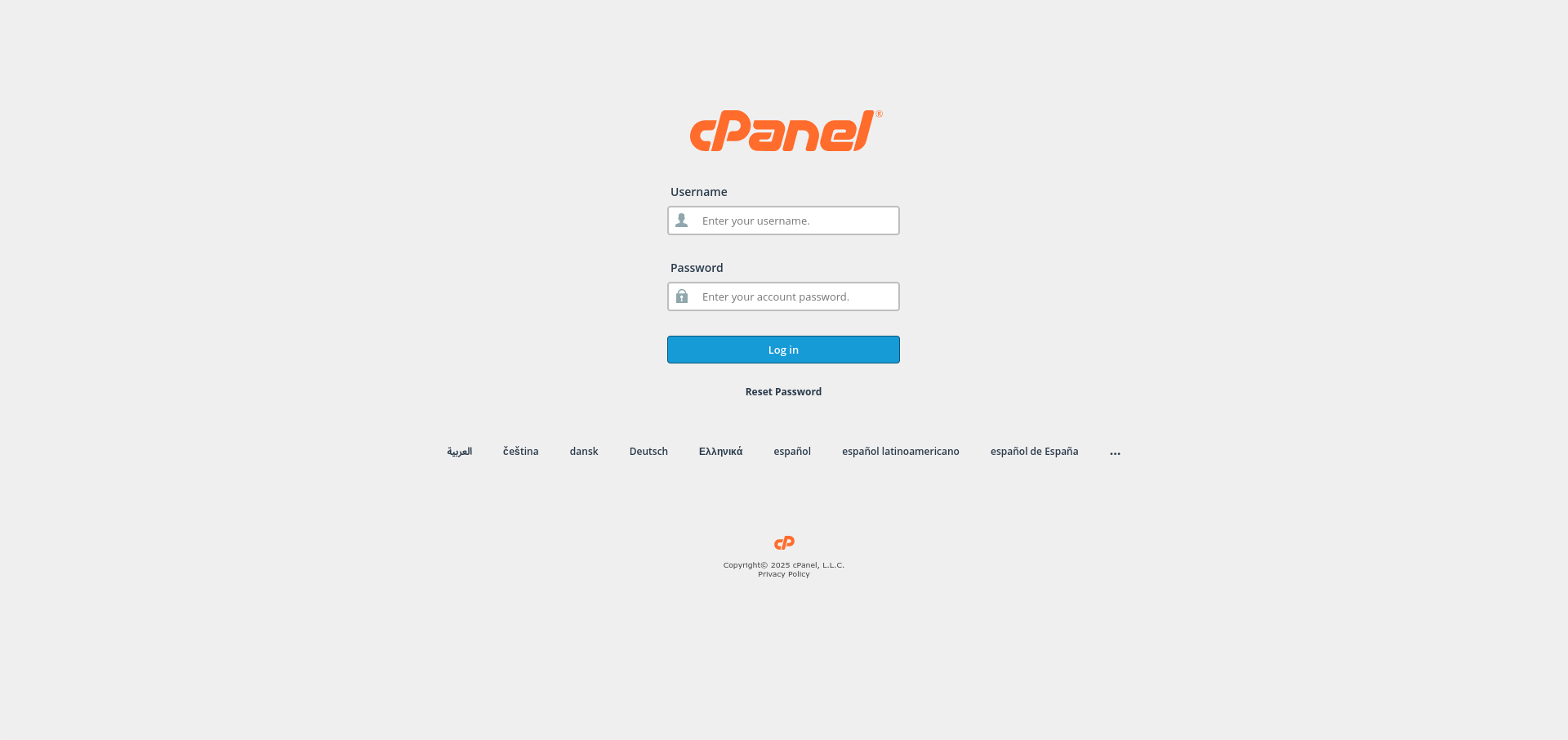
1. Log in to cPanel:
Use your user details to log in to the cPanel control panel.
2. Navigate to Password Settings:
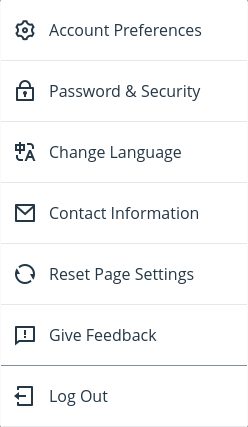
Click on your profile icon from the top-right corner of cPanel and click on Password & Security.
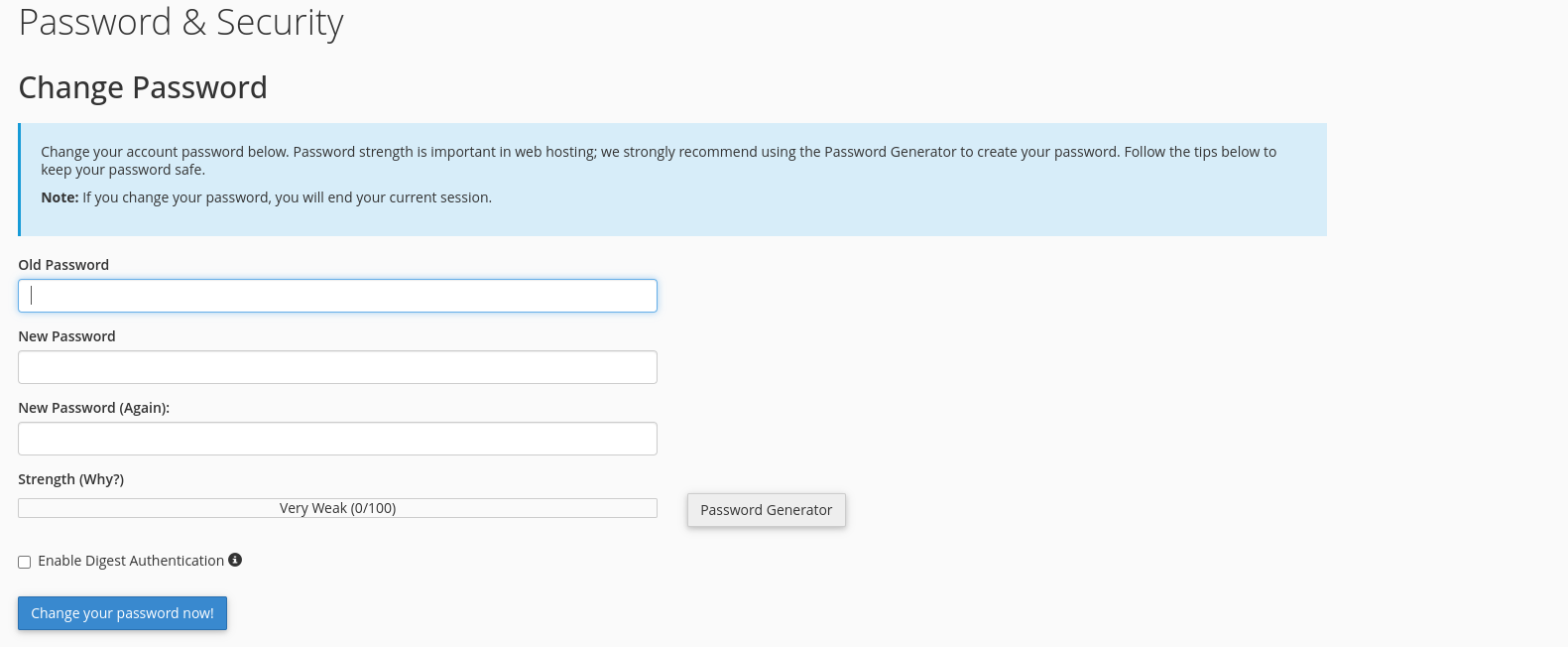
3. Enter Your Old Password:
In the Password & Security page, input your current password for verification.
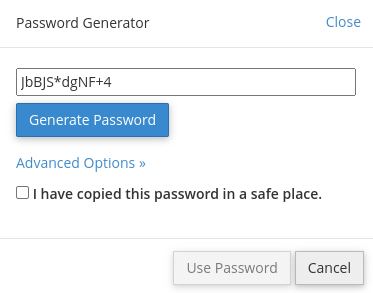
4. Set a New Password:
Enter your new password or use the password generator to create one.
5. Save Your New Password:
Click the Change your password now! button to save your new password.
Congratulations! You’ve successfully changed the password for your cPanel control panel user account.